Connect an assistant
Every assistant uses the same address:
https://mcp.cardnexus.com/mcp
Enter it exactly as shown, without a trailing slash. When the assistant opens the CardNexus page, sign in, choose what the assistant may do, and approve.
Claude
Do this once on claude.ai. The connector then works in Claude on the web, Claude Desktop and the Claude mobile app.
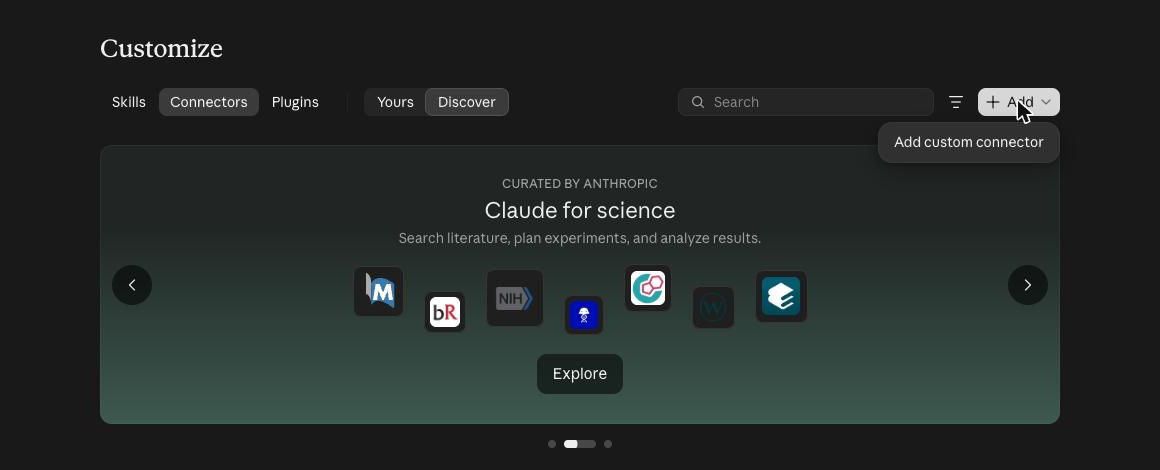
1. In claude.ai, open Customize, then Connectors. Choose Add, then Add custom connector.
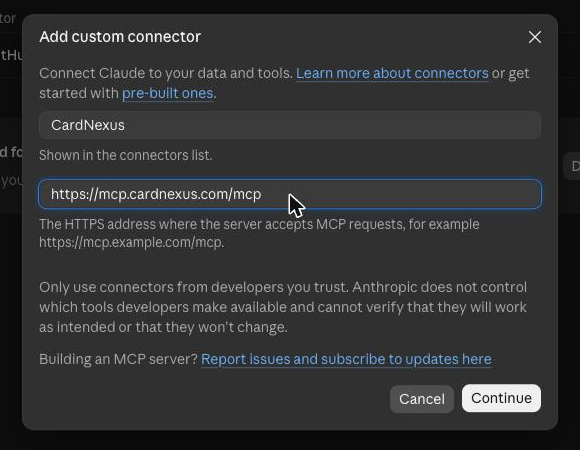
2. Name it CardNexus, paste the address, and choose Continue.
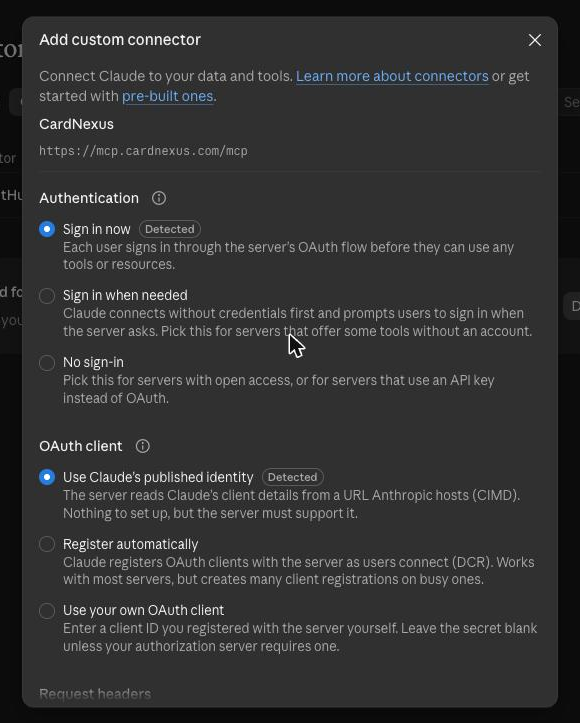
3. Keep the options Claude selects and choose Add.
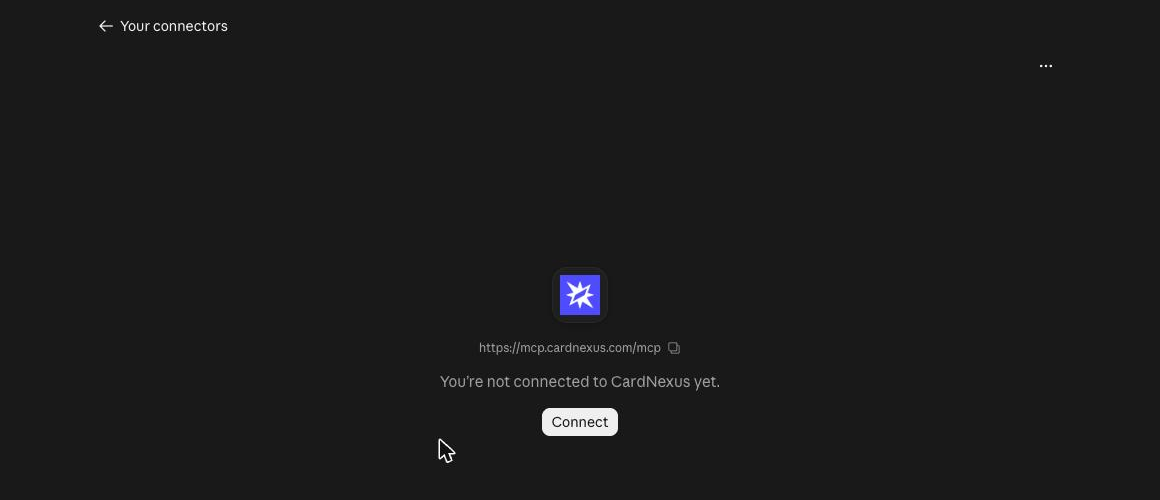
4. Choose Connect. The CardNexus page opens: sign in, choose permissions and approve (see Choose permissions).
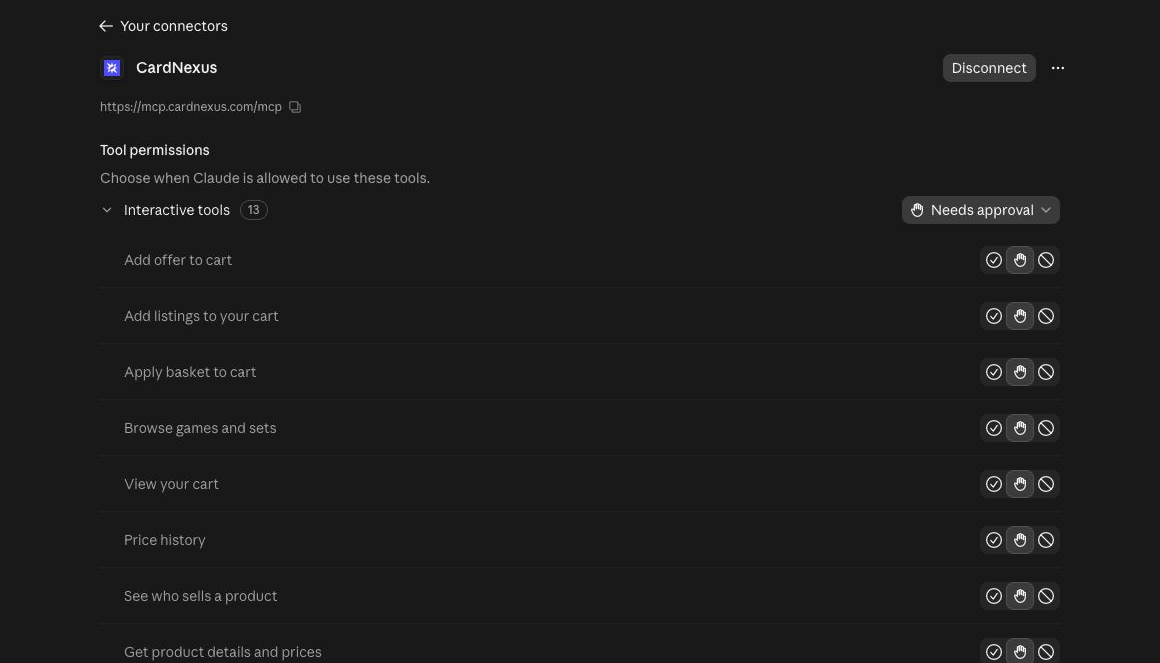
5. Back in Claude, CardNexus is connected. Claude asks before each tool runs; to stop being asked, set a group of tools to Always allow.
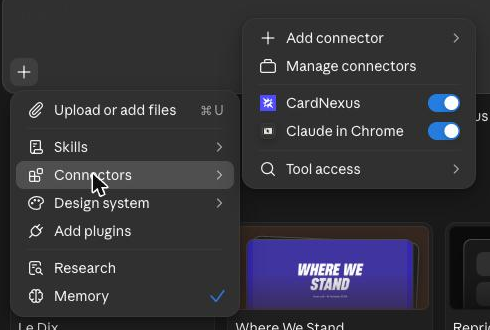
6. In a chat, open +, then Connectors, and check that CardNexus is on.
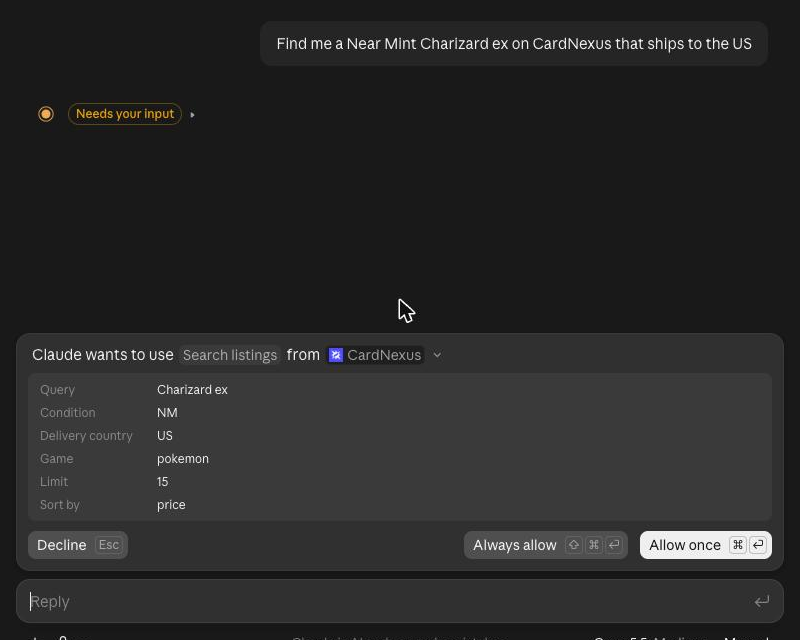
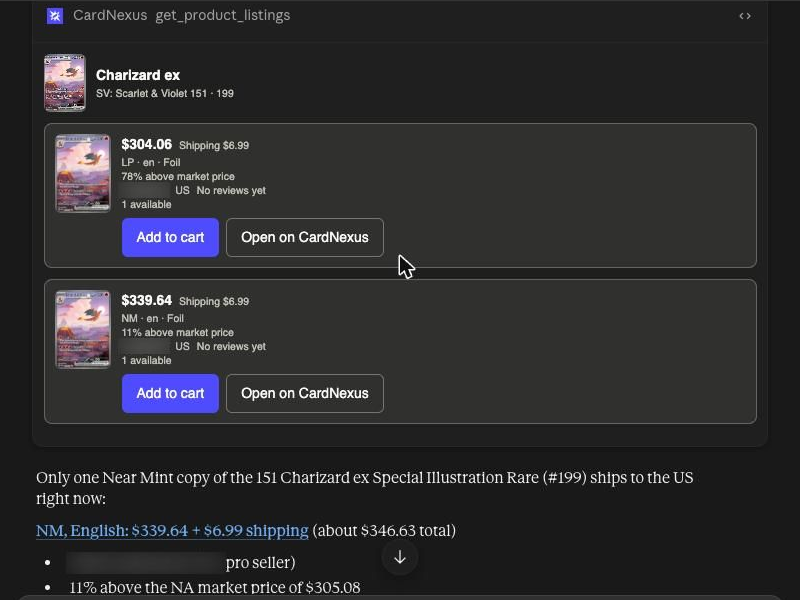
7. Ask about a card. Approve the request if Claude asks, and the results appear in the chat.
On a Team or Enterprise plan, an organization owner adds the connector first. Each member then connects their own CardNexus account.
ChatGPT
You need ChatGPT on the web with a Business, Enterprise or Edu plan, as a workspace admin or owner. On Enterprise and Edu, an admin can also allow other members. On a Pro plan, ChatGPT offers only the CardNexus tools that read.
1. In ChatGPT on the web, open Plugins. Select +, then Add custom MCP server.
2. Name it CardNexus, and under Connection enter the address https://mcp.cardnexus.com/mcp. Choose OAuth for authentication and leave the client ID and secret empty.
3. Check I understand and want to continue, then choose Create as a plugin. When the CardNexus page opens, sign in, choose permissions and approve.
4. CardNexus now appears in Plugins.
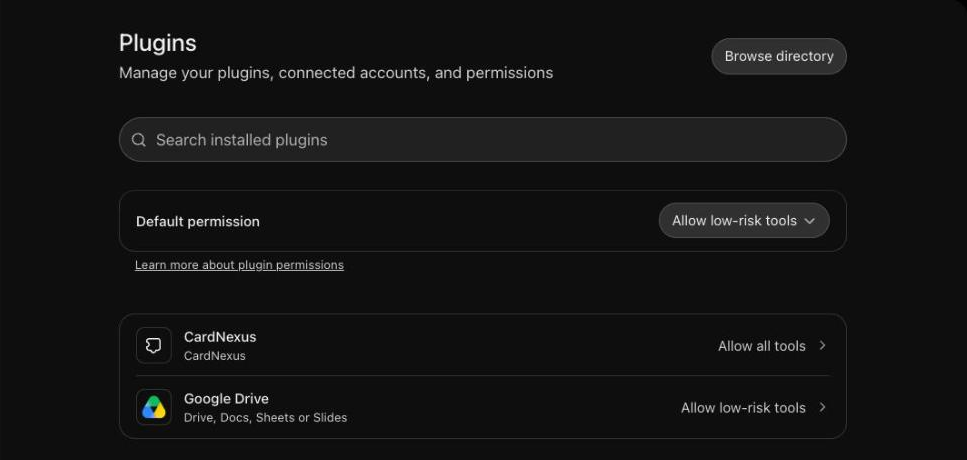
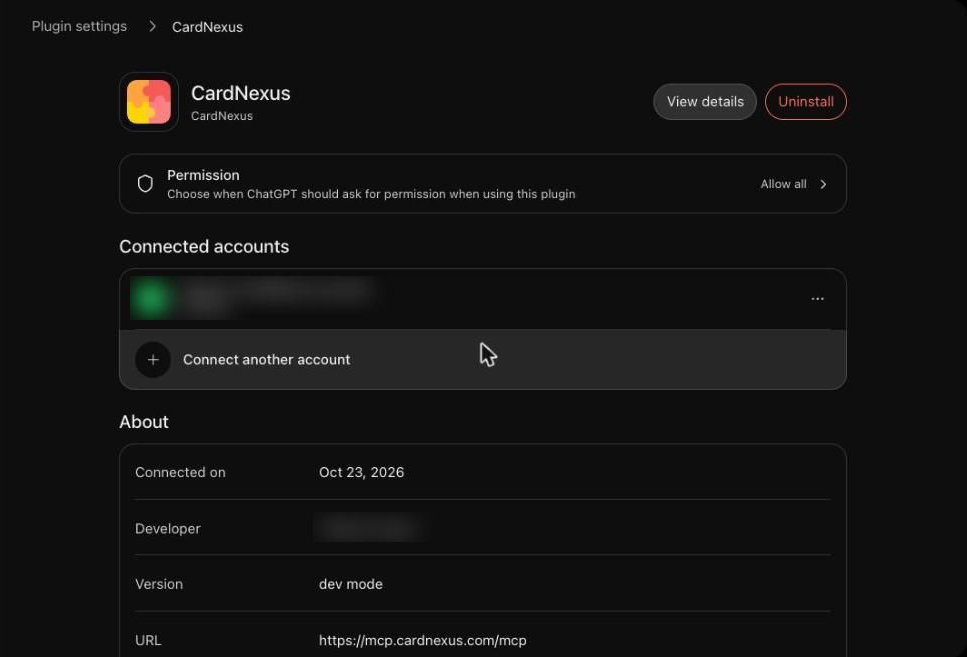
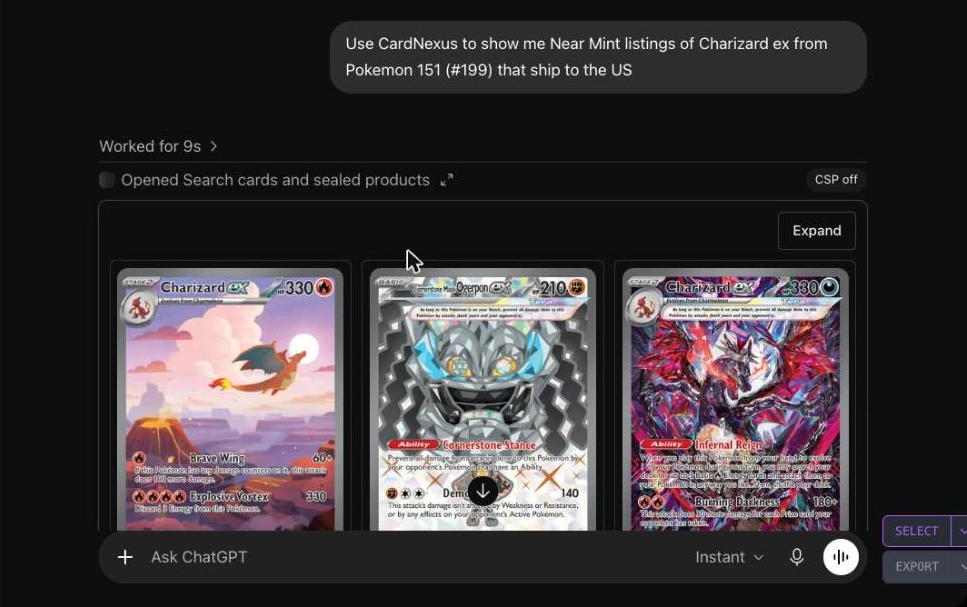
5. Start a new chat, type @ and select CardNexus, then ask about a card.
Claude Code
Run:
claude mcp add --transport http --scope user cardnexus https://mcp.cardnexus.com/mcp
Then start Claude Code, run /mcp, select cardnexus and authenticate. Your browser opens the CardNexus page; approve, and you are connected. The browser must run on the same machine as Claude Code.
Cursor
Add the server to ~/.cursor/mcp.json:
{
  "mcpServers": {
    "cardnexus": {
      "url": "https://mcp.cardnexus.com/mcp"
    }
  }
}
Reload Cursor, connect the server in its MCP settings, and approve in the browser.
VS Code
Add the server to .vscode/mcp.json, or run MCP: Add Server and choose HTTP:
{
  "servers": {
    "cardnexus": {
      "type": "http",
      "url": "https://mcp.cardnexus.com/mcp"
    }
  }
}
Start the server from the button above its entry and approve in the browser.
Choose permissions
For each area, choose Off, View only or View and change. To allow everything at once, choose View and change under Quick choice.
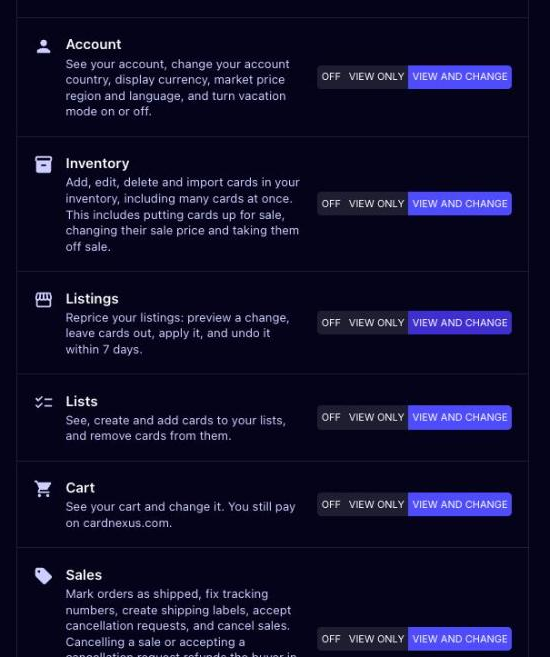
Claude and ChatGPT show as claude.ai and chatgpt.com. Other assistants show as unverified: approve only if you started the connection yourself.
Change permissions or disconnect
On cardnexus.com, open Settings, Integrations, Connected applications, and choose Disconnect. To change permissions, disconnect and connect again.
A connection also ends after 30 days without use.